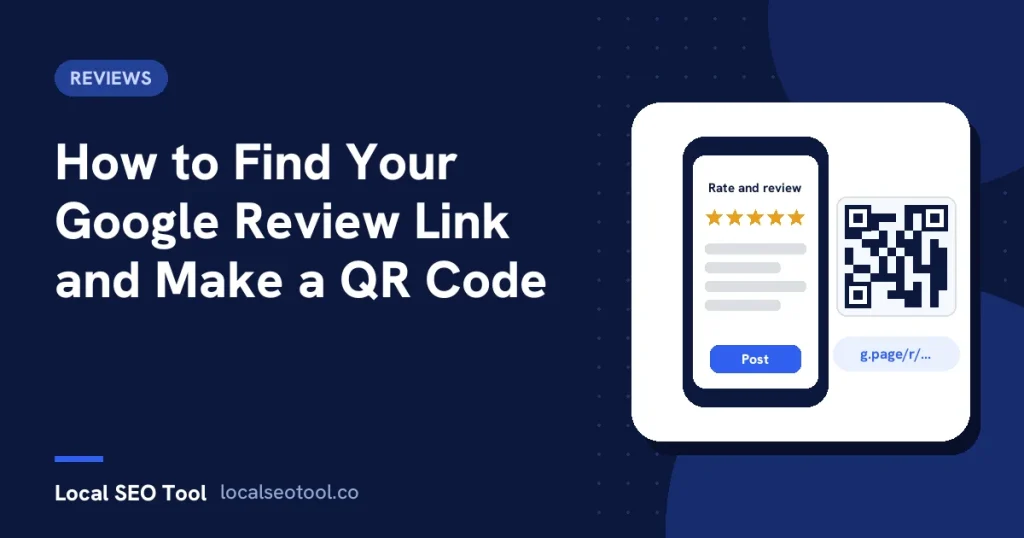
Sign in at business.google.com on a computer and open your profile. Select Read reviews, then Get more reviews. Copy the link with the copy icon, or right-click the QR code and choose Save image as. Google says the QR code can only be made in a computer browser, not on a phone.
A Google review link takes a customer straight to the box where they pick a star rating and type a review. No searching for your name, no scrolling past competitors, no guessing which listing is yours. One tap and they are in.
That matters more than it sounds. Most happy customers are willing to leave a review. Very few are willing to hunt for the form. If they have to search for you, find the right listing, scroll to the reviews and then find the button, a good share of them give up on the way.
This guide shows you how to get the link from Google, how to build it yourself when the button is missing, how to turn it into a QR code that actually scans, and the reasons links stop working months later without anyone noticing.
The two kinds of Google review link
There are two links that open the same review form. You only need one of them, but it helps to know both exist, because you will see both in the wild.
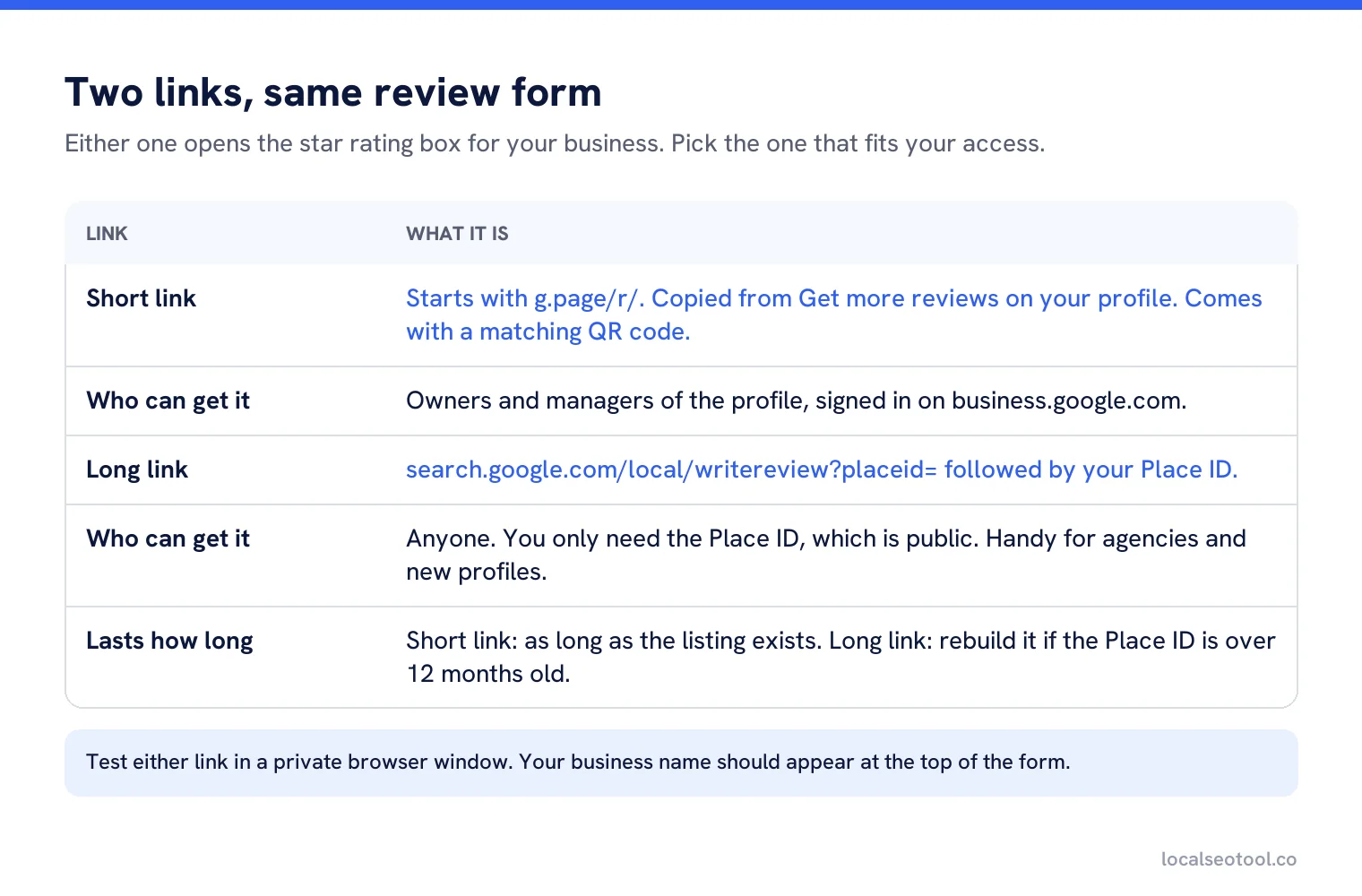
The short link is the one Google hands you from the profile. It usually starts with g.page/r/ and is the easiest to share in a text message. The long link is built from your Place ID, which is the code Google uses to identify your listing. It looks like this:
https://search.google.com/local/writereview?placeid=YOUR_PLACE_IDBoth work. Use the short link when you have owner or manager access to the profile. Use the long link when you don’t, for example when an agency is setting up review requests before the client has added them as a manager.
How to get your review link on a computer
This is the official route, and it is the only one that gives you a QR code as well. It takes about two minutes.
Sign in with the right Google account
Go to business.google.com and sign in with the account that owns or manages the profile. If you run several Google accounts in one browser, check the account picker at the top right. Chrome shows a first name, not an email address, so the wrong account can look right.
Open the profile
If you manage one business, the profile opens on its own. If you manage several, pick the location from the list first.
Select Read reviews, then Get more reviews
The Get more reviews option carries a share icon. This opens a panel with your link and a QR code side by side.
Copy the link or save the QR code
Use the copy icon for the link. For the QR code, right-click it and choose Save image as. Save it with a clear name, such as the location and the date, because you will want to find it again.
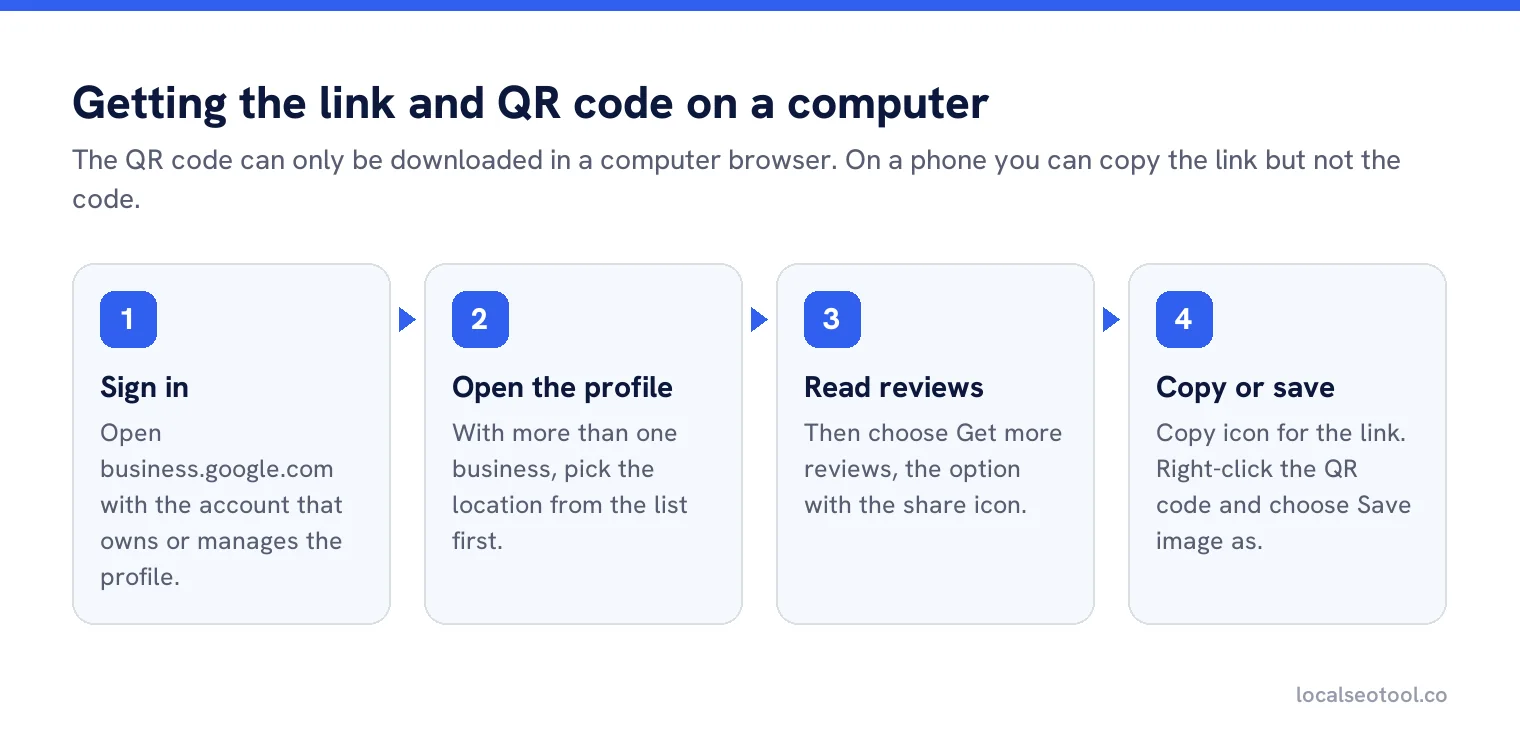
Google documents these steps on its review link and QR code help page. The labels sometimes move a little as Google updates the interface, but the path has stayed the same: reviews first, then the option to get more of them.
Doing it from a phone
You can usually copy the review link from your profile in Google Search or the Google Maps app. Look for a button labelled Ask for reviews or Get more reviews, then use the share option. The wording changes between the app and the browser.
What you cannot do on a phone is download the QR code. Google says plainly that review QR codes can only be generated in a computer browser. If you need the QR code and only have a phone, borrow a laptop for five minutes. It saves you from the next option.
How to build the link yourself from a Place ID
Sometimes the Get more reviews button just isn’t there. The profile may not be verified yet, you may not have manager access, or you are setting this up for twenty client locations at once. In those cases, build the long link by hand.
Find the Place ID
Open Google’s Place ID Finder, type the business name and town, and pick the right result from the list. The Place ID is a long string that usually starts with ChIJ.
Add it to the end of the review URL
Paste it after
placeid=in the link shown above. No spaces, no quote marks.Test it while signed out
Open the finished link in a private browser window. You should see your business name at the top of the review form. If you see a different business, you picked the wrong result in step one.
Our free Google review link generator does steps two and three for you. You paste the Place ID and it returns the finished link, ready to copy. Nothing you type is sent anywhere, as it runs in your browser.
One thing to know about Place IDs: they are not permanent. Google’s own Place ID documentation says they may change over time and suggests refreshing any that are more than 12 months old. A link you built in 2024 and printed on a thousand flyers is worth checking.
Turning the link into a QR code that scans
The QR code from the Get more reviews panel is the one to use. It comes from Google, so it points at the right place and there is no third party in the middle that could expire. If you made your QR code with a free online generator, check whether it encodes your review link directly or a redirect through the generator’s own domain. Redirect codes stop working when the free trial ends, and printed codes can’t be updated.
Printing is where most QR codes fail. A code that works on screen can be useless on a glossy menu under a warm light. A rough rule for size: make the code at least one tenth of the distance it will be scanned from.
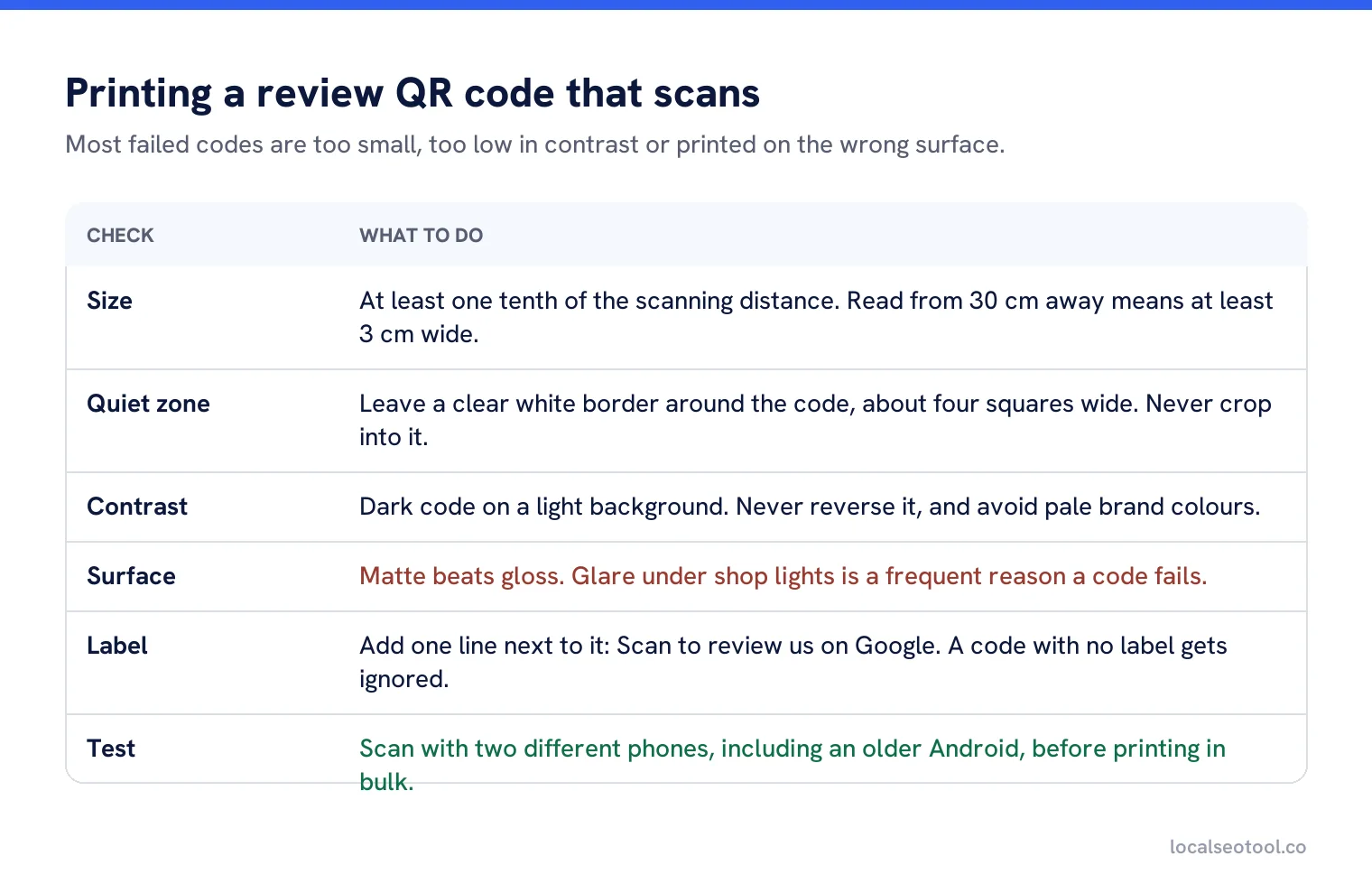
Always test with two different phones before you print in bulk. An iPhone camera and an older Android phone read codes differently, and the older phone is the one your customers are more likely to have in their pocket.
Where to share your review link
The best place is wherever the customer is when they are happiest with you. For a plumber that is a text message an hour after the leak is fixed. For a restaurant it is the receipt. For a dentist it may be the follow-up email the next morning, once the numbness has worn off.
| Where | When to send it | What to write |
|---|---|---|
| Text message | Within a few hours of finishing the job | One line, their first name, the link. Nothing else. |
| The day after, with the invoice or receipt | A short thank you and a single button. Skip the long story. | |
| Printed receipt or card | At the till or handed over with the order | The QR code and a plain line: “Scan to review us on Google”. |
| Email signature | Always on, for every member of staff | A small “Review us on Google” text link. |
| Your website | On the contact page and the thank you page after a booking | A clear button, not a hidden footer link. |
| WhatsApp or Messenger | When that is how the customer already talks to you | The same as a text message. Keep it personal. |
Customers need to be signed in to a Google account to leave a review. Most phone users already are. On a shared family computer they may not be, which is one reason text messages tend to get more reviews back than email.
If you want to see what a full review routine looks like once the link is in place, our guide to Google review management sets out the monthly process, and how Google Maps reviews work covers what customers see on the other side.
The rules the link has to follow
A review link is just a shortcut. Google’s rules about reviews still apply to how you use it, and the rules are stricter than most businesses assume. These all come from Google’s prohibited and restricted content policy for Maps.
- No incentives. No discount, free coffee, prize draw or “10% off your next visit” in exchange for a review. Google lists payment, discounts and free goods or services by name.
- No picking who gets the link. Google says businesses must not selectively ask for positive reviews. Sending the link only to customers you think liked you counts. So does a “Were you happy? Yes goes to Google, No goes to a private form” funnel.
- No pressure on the premises. Google says businesses should not require or pressure people to leave a review while they are on site. A QR code on the counter is fine. A staff member standing over the customer until they finish is not.
- No review quotas for staff. Asking staff to collect a set number of reviews, or reviews that mention particular words, is listed as not allowed.
Breaking these rules rarely gets the whole profile removed on the first offence. What usually happens is quieter: Google filters the reviews it thinks were incentivised or solicited unfairly, and the count you see as the owner stops matching the count customers see. That is one of the most common reasons behind “my reviews disappeared”.
Why review links stop working
A review link can break months after you printed it, and nobody tells you. Customers who scan a dead code don’t call to complain. They just leave. Check your link every few months, and straight away after any of these.
| What happened | Why the link breaks | What to do |
|---|---|---|
| You moved address | A move can change the listing, and with it the Place ID | Get a fresh link after the move. Our guide to changing your address on Google Maps covers what else moves with it. |
| Two listings were merged | The link may point at the listing that was removed | Test it. If it opens the wrong listing or an error, make a new link. |
| The profile was suspended | A suspended profile can’t receive new reviews | Fix the suspension first, then test the link again. |
| You used a link shortener or QR service | The short link or redirect expired with the free plan | Replace it with the link or QR code from Google itself. |
| Old Place ID | Place IDs can change over time | Rebuild the long link if it is more than a year old. |
The test takes ten seconds. Open the link in a private window on your phone, check your business name is at the top, then close it without posting anything.
Review links for more than one location
Every location has its own profile, so every location has its own link and its own QR code. A chain that prints one QR code for all its branches sends every review to one branch, which helps nobody.
Keep a simple sheet with one row per location: the store code, the Place ID, the review link, the QR file name and the date you last tested it. When a branch moves or a profile is merged, you update one row instead of searching for files.
Past a handful of branches, it is worth running review requests from one place so each branch sends its own link automatically. Our review generation feature sends a request after each job and follows up once, and review QR codes makes a code for each location for receipts, counters and packaging. If reviews across many outlets are already the problem, read how multi-location businesses manage reviews.
Get your review link in under a minute
Paste your Place ID into our free generator and copy a working review link. No sign up, and nothing leaves your browser.
Frequently asked questions
Is a Google review link free?
Yes. Google gives you the link and the QR code at no cost from your Business Profile. You do not need any paid tool to get them.
Why is there no Get more reviews button on my profile?
The most common reasons are that the profile is not verified yet, or you are signed in with an account that is not an owner or manager. You can still build the long link from your Place ID while you sort out access.
Can I make the QR code on my phone?
No. Google says review QR codes can only be generated in a computer browser. You can copy the link on a phone, but you need a computer to download the QR code.
Does my review link ever change?
The short link usually stays the same while the listing exists. The long link depends on your Place ID, which Google says can change over time, especially after a move or a merge. Test the link every few months.
Can I send the link only to happy customers?
No. Google does not allow businesses to selectively ask for positive reviews. Send the link to every customer in the same way, and reply to whatever comes back.
Sources
The Google documentation behind the guidance on this page. Google changes these pages without notice, so check the date on any figure before you rely on it.